

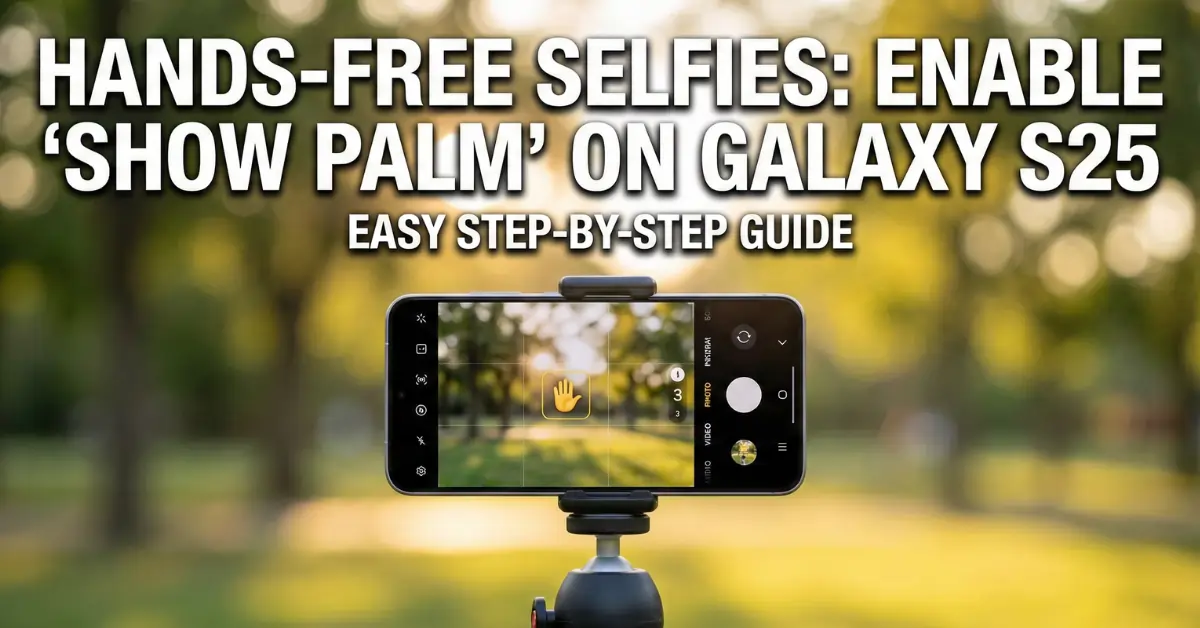
If you are struggling with shaky selfies or awkward angles, the best solution is to enable ‘Show Palm’ on Galaxy S25. We’ve all been there: your arm stretches out, but you can’t reach the shutter button without dropping your phone.
In my testing, learning how to enable ‘Show Palm’ on Galaxy S25 completely fixes this problem. Just show your hand to the camera, and a countdown starts. You don’t even need to touch the screen. Here is my definitive guide to setting it up.
Why You Should Use This Feature
Before we jump into the steps, let’s look at why this matters. Tapping the screen causes “camera shake,” making your photos blurry. When you enable ‘Show Palm’ on Galaxy S25, you eliminate that shake entirely.
In my experience, this is indispensable for:
- Large Group Photos: When you need maximum reach.
- Solo Travel: When propping the phone up against a wall or a tripod.
- Vlogging: Starting a video recording without a shaky start.
Phase 1: Accessing the Shooting Methods
Samsung hides its best features deep in the menus. Follow these steps to locate the right section so you can enable ‘Show Palm’ on Galaxy S25 quickly.
- Open the Camera app on your Galaxy S25.
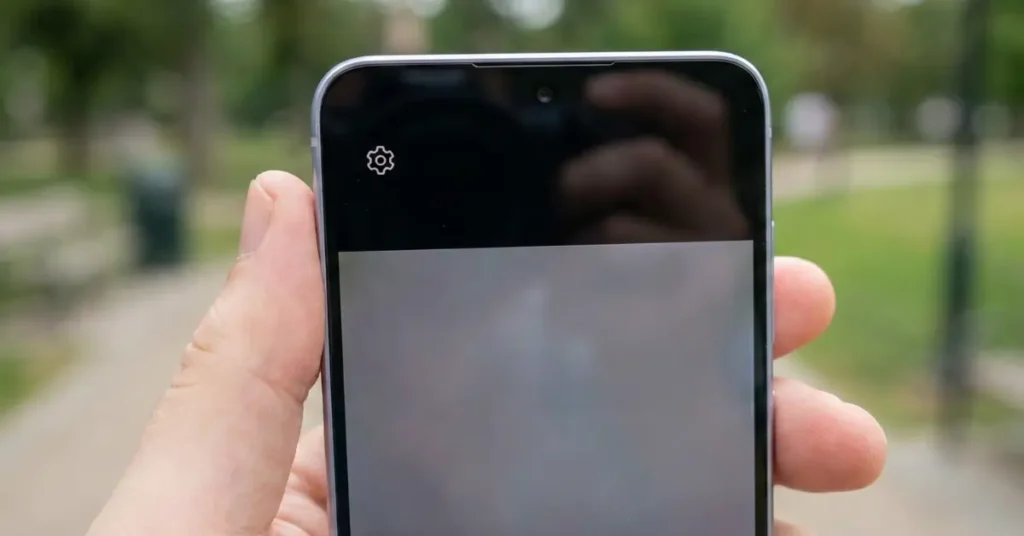
- Look at the top left corner of the screen and tap the Settings icon (it looks like a small mechanical gear).
- Scroll down the menu list until you see the General section.
- Tap on Shooting methods.
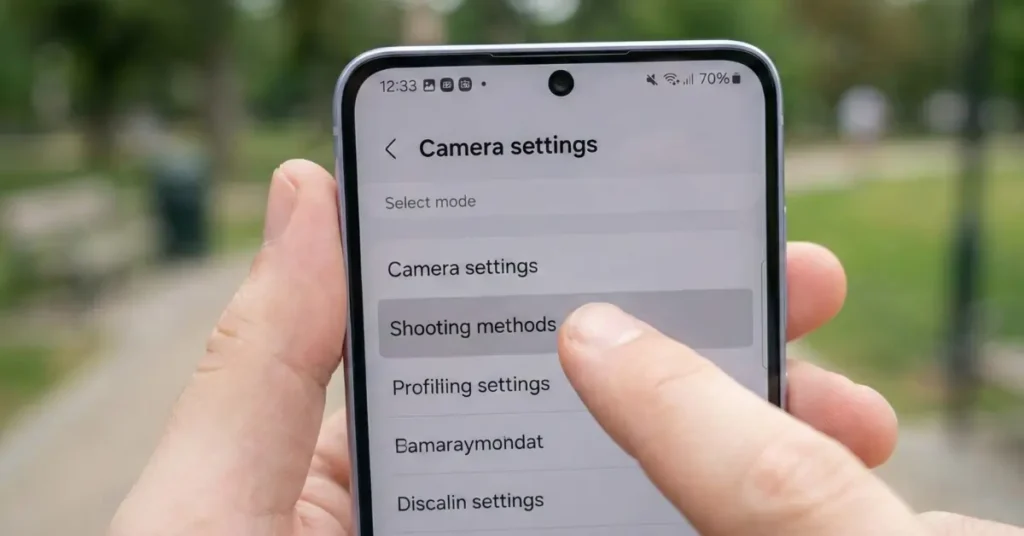
Pro Tip: If you cannot find “Shooting methods,” use the search bar at the very top of the Settings menu and type “Palm.” It will take you straight there.
Phase 2: Activating the Gesture
Now that you are in the menu, here is the specific action to enable ‘Show Palm’ on Galaxy S25 for good.
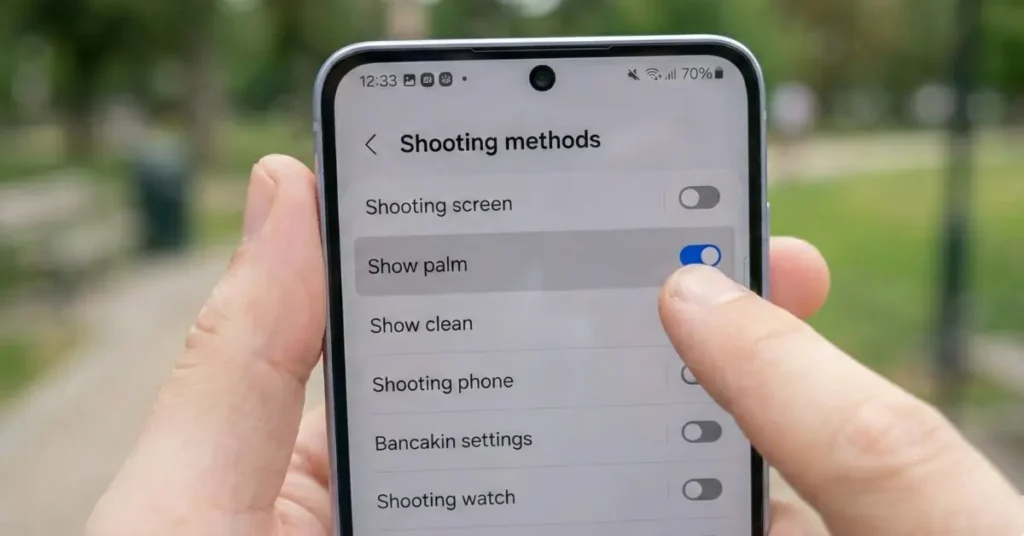
- Look for the toggle switch labeled Show palm.
- Tap the switch to turn it On (it will turn blue).
What to do if this fails: Sometimes the setting is greyed out. This usually happens if you are in a specialized camera mode like “Single Take” or “Dual Recording.” Make sure your camera is set to standard Photo or Video mode before trying to change settings.
Phase 3: How to Take the Shot
Enabling the setting is only half the battle. You need to know the right technique to make it work every time.
- Go back to the main camera screen and switch to the Front Camera (selfie mode).
- Frame your shot with your friends or background.
- Raise your hand comfortably with your palm facing the camera.
- Hold your palm steady until you see a yellow box appear around your hand or a countdown circle start.
- Put your hand down quickly. The shutter will snap in 2-3 seconds.
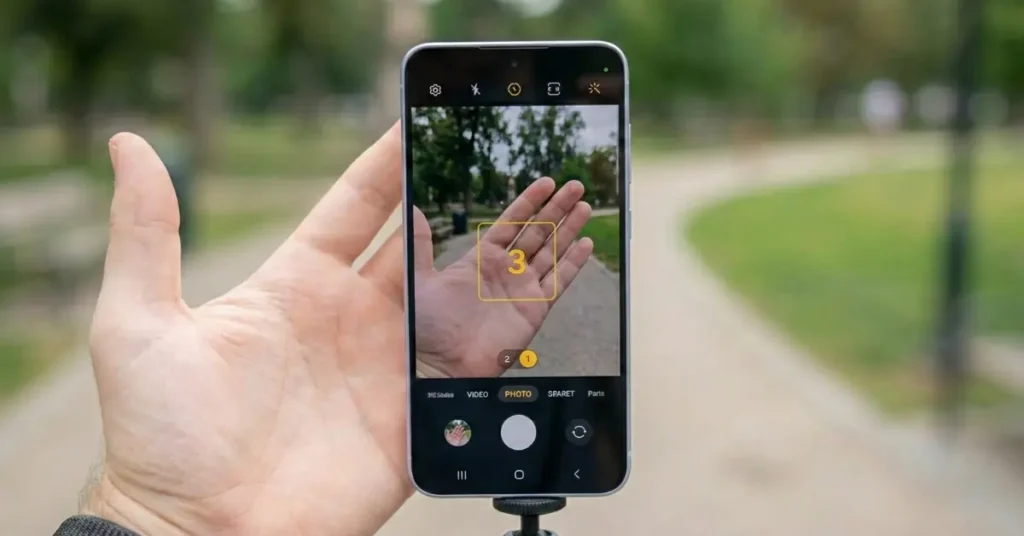
Expert Note: In my testing, I found that you do not need to wave. Just holding your hand up like a “Stop” sign works best. Waving actually confuses the S25’s autofocus sensor.
Editorial Opinion: Is This the Best Method?
After testing every method, my verdict is clear: You should absolutely enable ‘Show Palm’ on Galaxy S25 immediately.
Is “Show Palm” the best? Yes, but with a caveat.
It is superior to the Timer because you don’t have to run into the frame; you trigger it when you are ready. It is also better than pressing the Volume Keys because it eliminates hand shake.
However, the Voice Command feature (saying “Cheese” or “Smile”) is technically faster. But let’s be real—shouting “Cheese” in a crowded restaurant or quiet museum is embarrassing. The “Show Palm” gesture is silent, discreet, and makes you look like a tech expert. It is my go-to method for 90% of my selfies.
Also Read: How to Fix Battery Drain After Update: 5 Solutions for December 2025
It takes less than 30 seconds to enable ‘Show Palm’ on Galaxy S25, but it will save your photos from being blurry forever. It is a simple tool that solves a physical problem elegantly.