

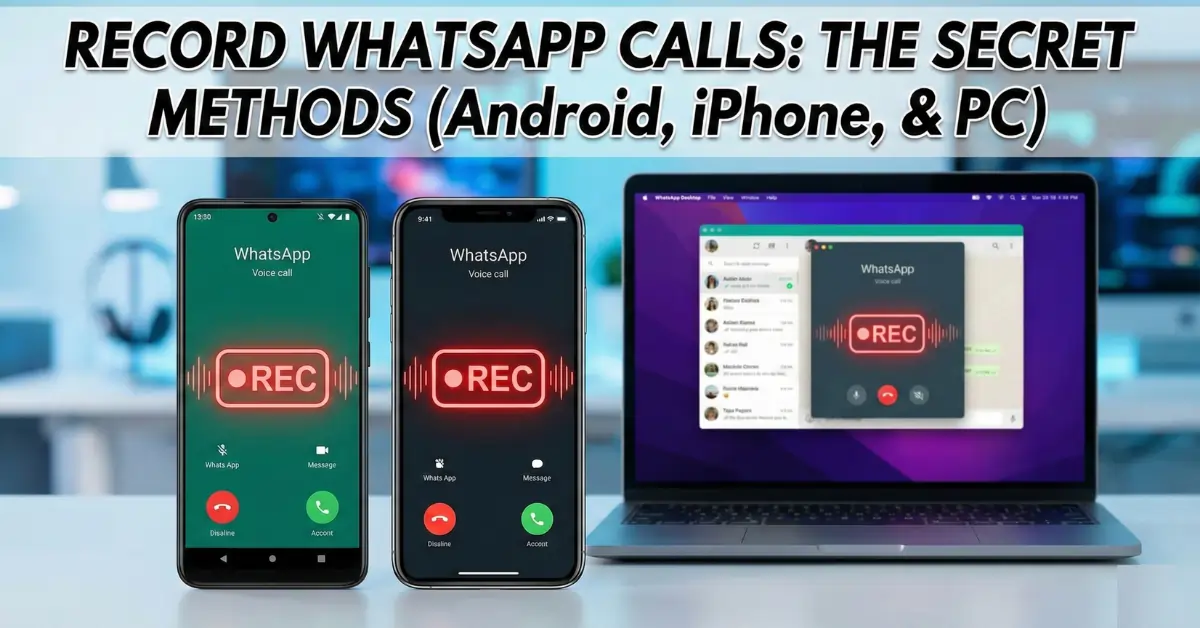
You want to save a conversation, but the app won’t let you learn how to record WhatsApp calls natively. I will show you the exact steps to bypass this restriction safely, legally, and easily on any phone. I know this looks complicated because of all the privacy rules, but stick with me, I’ve done this hundreds of times.
Before We Start: The Checklist
Don’t skip this! To make this work, you need to make sure you have the basics ready.
- Check your space: You need at least 500MB of free space on your phone. Video files are heavy!
- Check your version:
- Android: Android 10 or newer (for internal audio features).
- iPhone: iOS 14 or newer.
- Headphones (Optional but helpful): Sometimes recording works better without them, but have them nearby just in case we need to test audio levels.
Phase 1: How to record WhatsApp calls on Android
Android gives us the most freedom, but Google has tightened security recently. We need to be smart about this. I will show you the two best ways to master how to record WhatsApp calls on this platform.
Method 1: The Built-in Screen Recorder (Best for most users)
This is my favorite method for learning how to record WhatsApp calls because you don’t need to download any sketchy apps. It uses the tool already hidden in your phone.
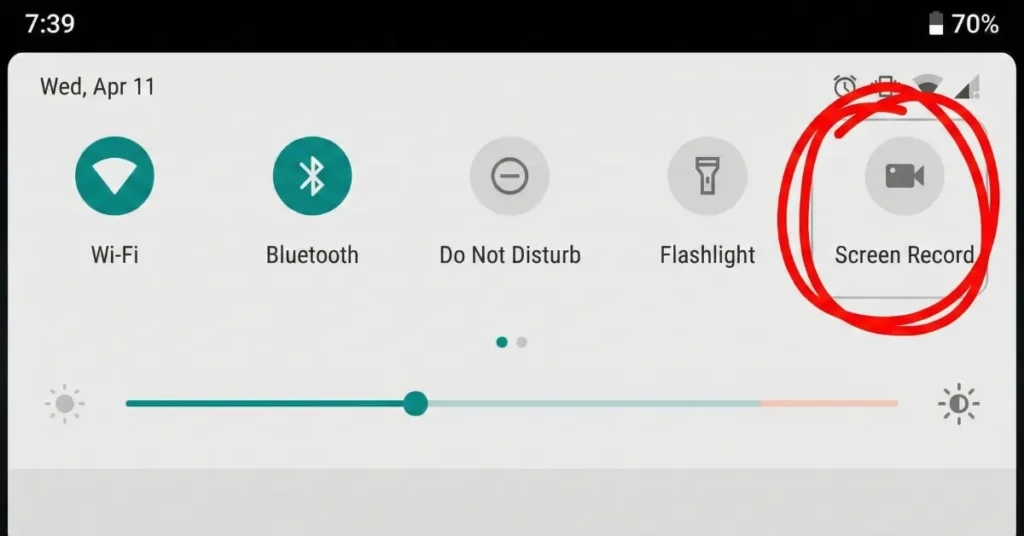
Step 1: finding the hidden button. Unlock your phone. Swipe down from the very top of your screen. You should see your Quick Settings (where Wi-Fi and Bluetooth live). Swipe down again to see the full list.
- Visual Cue: Look for an icon that looks like a video camera or says “Screen Record.”
- The “What If”: If you don’t see it, tap the Pencil icon (Edit) at the bottom of the panel. Drag the “Screen Record” icon from the bottom list up to your active top list.
Step 2: Adjusting the sound settings. Do not tap the button yet! Press and hold the “Screen Record” icon. This will take you to the settings menu.
- The Action: Tap on “Sound source” or “Audio source.”
- The Critical Choice: Select “Media sounds and mic” (or just “Microphone” if that is the only option).
- The Why: If you choose “Media sounds” only, it might not pick up your voice. If you choose “None,” you get a silent movie. We need the “Mic” to hear you.
Step 3: making the call. Open WhatsApp. Call your contact. BEFORE they answer, swipe down and tap “Start Recording.”
- Pro Tip: You will see a countdown (3, 2, 1). Wait for it to finish before you start talking so you don’t cut off your greeting.
Step 4: ending the recording. When the call is done, tap the floating “Stop” button on your screen (usually a red square). The video will save to your Gallery.
Pro Tip: Since this records your screen too, make sure you don’t open any sensitive banking apps or private photos while on the call!
Method 2: using a Third-Party App (Cube ACR)
If your phone is older or the built-in recorder blocks the audio (which happens on some Samsung models), we need a specialist tool to figure out how to record WhatsApp calls.
Step 1: Get the app. Go to the Google Play Store. Search for “Cube ACR”. Download and install it.
Step 2: the tricky setup. Open the app. It will ask for a lot of permissions (Storage, Mic, Phone, Contacts).
- The Advice: You must say “Yes” or “Allow” to all of them.
- The “Why”: Cube ACR needs an “Overlay” permission to run on top of WhatsApp. If you deny this, it crashes.
Step 3: the “Connector” setup. The app will ask to enable the “Cube ACR App Connector” in your Accessibility settings.
- Action: Tap “Enable.” It will take you to your phone’s Accessibility menu. Find “Cube ACR” and turn the toggle ON.
- Warning: Do not skip this. This is the secret sauce that lets the app “hear” the VoIP (internet) call.
Step 4: test it. Make a WhatsApp call. You should see a small purple widget light up on the side of your screen. If it lights up, it’s working!
Phase 2: How to record WhatsApp calls on iPhone
Apple cares a lot about privacy, which makes this harder. Apps cannot access the microphone while another app (WhatsApp) is using it. But I have a workaround for how to record WhatsApp calls on iOS.
The “Speakerphone” Trick (The only reliable free way)
Since we can’t hack the system, we have to outsmart it. This is the most reliable method for understanding how to record WhatsApp calls on an iPhone without jailbreaking.
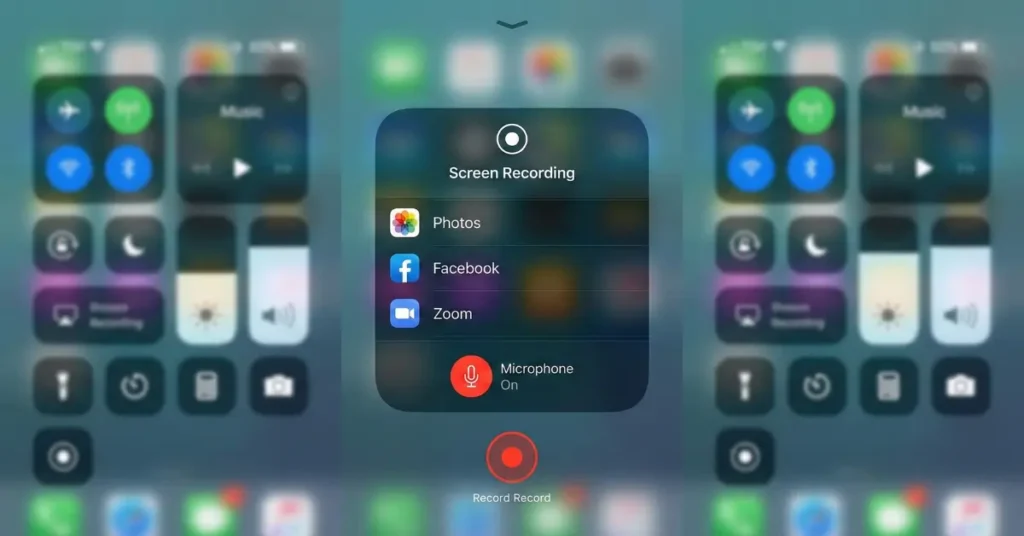
Step 1: prep your Control Center. Go to Settings. Scroll down to Control Center.
- Action: Look for “Screen Recording.” If it has a green plus (+) next to it, tap it to add it to your active controls.
Step 2: the microphone toggle. Open your Control Center (swipe down from the top right on newer iPhones, or up from the bottom on older ones).
- The Secret Move: Long-press (press and hold) the Screen Recording button. You will see a microphone icon at the bottom.
- Action: Tap it so it turns RED and says “Microphone On.”
- The Why: By default, iPhone screen recording only records internal sounds (music, games). It ignores the mic unless you do this step.
Step 3: max out the volume. Open WhatsApp and start your call.
- Critical Step: Put the call on Speakerphone immediately.
- Action: Turn your volume up to the maximum level.
- The “Why”: Since the iPhone won’t record the internal “system audio” of the call directly due to privacy blocks, we are using the microphone to record the sound coming out of the speaker and back into the mic. It’s a loop!
Step 4: hit record. Swipe down, tap the Record button, and wait 3 seconds. Go back to your call.
Pro Tip: This method picks up background noise. Try to be in a quiet room, or the recording will sound like you are in a wind tunnel.
Phase 3: Recording WhatsApp calls on desktop (PC & Mac)
If you are at a desk, knowing how to record WhatsApp calls on your computer is actually much easier than using a phone.

For Windows Users (Game Bar)
Step 1: Open the WhatsApp Desktop app (not the browser version; the actual app works better). Start your call. Step 2: Press the Windows Key + G on your keyboard. This opens the Game Bar. Step 3: Look for the “Capture” widget. Click the generic “Record” button (the circle).
- The “What If”: If you don’t hear the other person in the recording, check the “Audio” widget in the Game Bar and make sure “System Sound” is not muted.
For Mac Users (QuickTime)
Step 1: Open QuickTime Player. Step 2: Go to File > New Screen Recording. Step 3: Click “Options” and make sure your Microphone is selected. Step 4: Hit Record. Make your call on the WhatsApp desktop app.
Common Problems & Fixes (Troubleshooting)
Even with the best guide on how to record WhatsApp calls, things can go wrong. Here is how to fix them.
Problem 1: “I only hear my voice in the recording!” This is the most common issue.
- The Fix: This usually happens on Android because Google blocks “internal audio” recording during calls. Try switching your Screen Recorder settings from “Media sounds” to “Microphone.” You will need to put the call on Speakerphone for the mic to catch the other person.
Problem 2: “The recording button is greyed out.”
- The Fix: This means another app is using the camera or mic. Close Instagram, TikTok, or Zoom running in the background. Restart your phone if it’s still stuck.
Problem 3: “The file is too big to share.”
- The Fix: Screen recordings are video files, which are huge. Use a free online converter to turn the MP4 video into an MP3 audio file. This will shrink a 500MB video down to a 5MB audio clip.
See? That wasn’t so hard. You don’t need expensive equipment or a degree in computer science. Whether you use the hidden Android tools or the iPhone speakerphone trick, you now know how to record WhatsApp calls whenever you need to save an important memory or interview.
Go ahead and try a test call with a friend right now—you’ll be surprised how clear the audio can be!
Frequently Asked Questions (FAQ)
Can WhatsApp calls be recorded legally?
Yes, but you must be careful. In many places (like some US states), you must tell the other person you are recording (“Two-party consent”). Always ask for permission first to stay safe.
Does WhatsApp notify the other person?
No. Unlike Zoom or Snapchat, WhatsApp does not send a notification when you start screen recording. They will only know if you tell them.
Why can’t I just use a regular voice recorder app?
On both iPhone and Android, the microphone can only be used by one app at a time. If WhatsApp is using the mic for the call, a standard voice recorder app gets blocked. That is why we use screen recording as the main method for how to record WhatsApp calls—it bypasses this rule.