
OPPO has officially started rolling out the Oppo ColorOS 16 August update to eligible smartphones. If you want to get the latest AI tools, tighter security settings, and fresh interface tweaks, you need to know how to update my phone to the newest ColorOS 16.
- What are the new features in the ColorOS 16 August update?
- Is the August update for ColorOS 16 available for all models in India?
- How can I download the latest August update for ColorOS 16 on my phone?
- Method 1: Over-The-Air (OTA) Update (Recommended)
- Method 2: Update Using the OPPO System Upgrade Tool (via PC)
- Troubleshooting Common Update Issues
Note
Expert Testing: Before updating to Oppo ColorOS 16 and starting the system firmware upgrade, ensure you back up your important files and photos.
What are the new features in the ColorOS 16 August update?
The latest build brings several practical upgrades that improve daily performance and everyday multitasking:
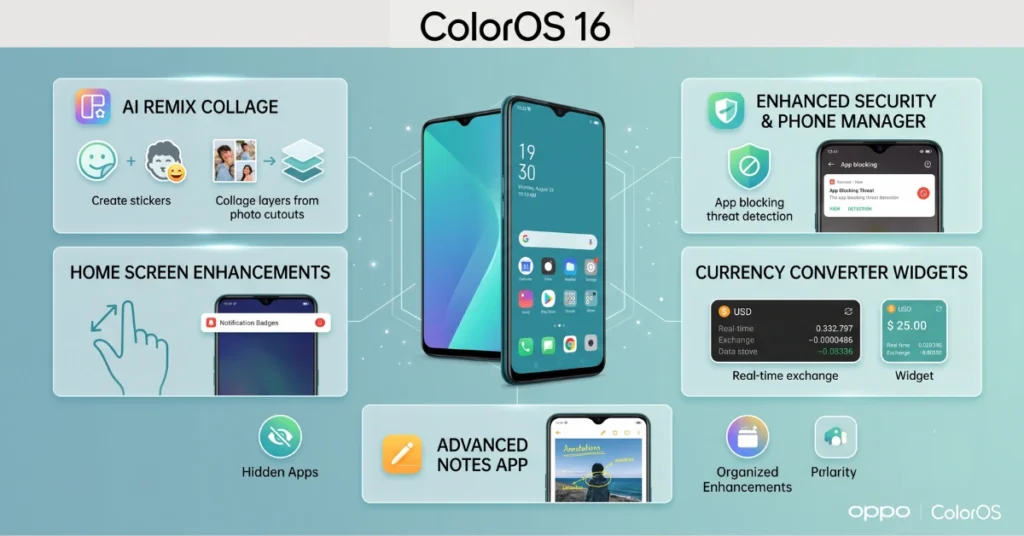
- AI Remix Collage: Uses the Smart Cutout tool to quickly lift subjects out of photos and convert them into custom sticker sets, collages, or mood boards with custom layers.
- Enhanced Security & Phone Manager: The system actively monitors background apps to catch and block malicious pop-ups, unusual battery drain, and unauthorized device-control attempts in real time.
- Home Screen Badge Clear Gesture: A two-finger pinch-out gesture on the home screen immediately clears all red notification badges without deleting alerts from the notification tray.
- Currency Converter Widgets: New 2×2 and 4×2 widgets live directly on your home screen, giving you live currency exchange rates.
- Upgraded Notes App: You can now draw, highlight, and write notes directly on top of embedded images.
- Storage and Hidden Apps Overhaul: Storage cleanup tools are now sorted into clear categories, and hidden apps can be opened quickly in floating windows with a simple swipe.
Is the August update for ColorOS 16 available for all models in India?
The Oppo ColorOS 16 August update India release is being delivered in phases from August 1 to August 31, 2026. The initial wave targets select premium and upper-mid-range hardware.

Eligible Devices Receiving the Rollout:
- OPPO Find Series: Find N6, Find N5, Find X9 Ultra, Find X9 Pro, Find X9s, Find X9, Find X8, and Find X8 Pro.
- OPPO Reno Series: Reno16 Pro 5G, Reno16 5G, Reno15 Pro 5G, Reno15 5G, Reno15 4G, Reno6 series, and Reno5 series.
Note
If your device belongs to the A, F, or K series, OPPO plans to expand the firmware deployment to more models in later release cycles.
How can I download the latest August update for ColorOS 16 on my phone?
You can upgrade your smartphone using two safe methods: directly Over-The-Air (OTA) or via a computer with the official PC upgrade utility.
Method 1: Over-The-Air (OTA) Update (Recommended)
This is the fastest, safest method to complete the upgrade without extra equipment.
- Connect to Wi-Fi and confirm your battery charge is at 50% or higher.
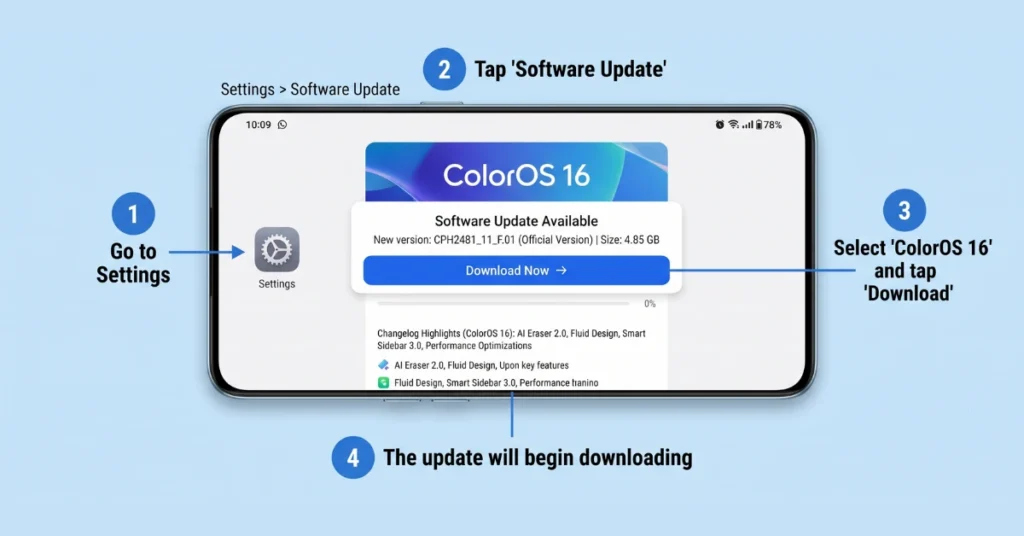
- Open the Settings app on your OPPO smartphone.
- Scroll down and tap About Device (or Software Update on some builds).
- Tap the ColorOS banner at the top of the screen to search for incoming builds.
- Tap Download and Install when the system detects the update.
- Allow the device to restart so the operating system can finish applying the installation files.
Method 2: Update Using the OPPO System Upgrade Tool (via PC)
If your device is eligible but the over-the-air prompt has not arrived, use the official PC utility to push the update manually.
- Download the OPPO System Upgrade Tool on a Windows computer from the official OPPO software portal.
- Launch the software after completing the standard installer steps.
- Enable USB Debugging inside your phone’s Developer Options menu.
- Connect the phone to your PC using an official USB data cable.
- Install the OTA Assistant app on your handset when the desktop program prompts you.
- Click Download in the PC tool to pull the build and follow the final on-screen prompts to upgrade.
Troubleshooting Common Update Issues
- Update Check Fails: Restart your device, disconnect and reconnect to your Wi-Fi network, and check again.
- Insufficient Storage Error: Clear at least 10 GB to 15 GB of internal storage before initiating the download.
- PC Tool Fails to Recognize Phone: Disconnect the USB cable, restart the OPPO System Upgrade Tool, and ensure USB Debugging remains active.
Learning how to update my phone to the newest ColorOS 16 ensures your hardware stays fast, secure, and equipped with the newest software features. Check your settings menu today to get started.