
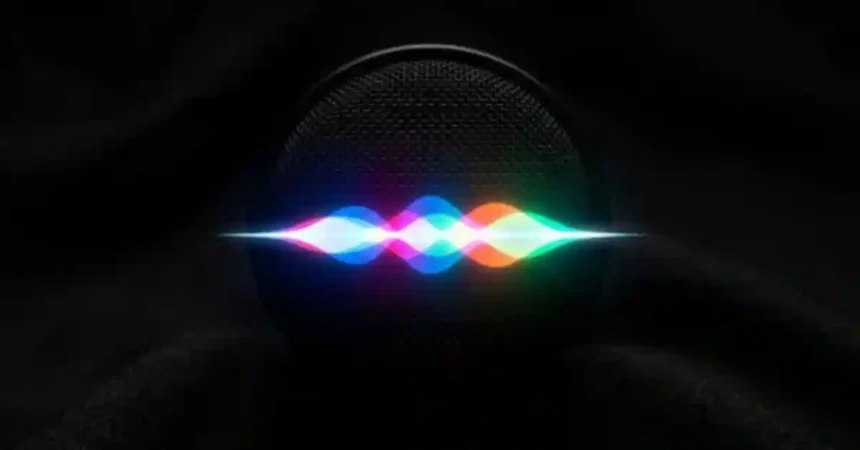
Apple introduced a massive overhaul to its virtual assistant with the release of iOS 27. Thanks to the upgrades revealed during the WWDC 2026 Siri updates, the assistant sounds significantly more human and context-aware. If you want to personalize your iPhone experience, you need to know how to configure the iOS 27 Siri system. This guide covers exactly how to change Siri voice in iOS 27 and unlock new accents safely.
What You Need Before You Start
Apple states that while iOS 27 supports devices going back to the iPhone 11 series, the full suite of next-gen Apple Intelligence voice processing relies heavily on newer hardware.
- Supported Devices for Basic Features: iPhone 11 series and newer running iOS 27.
- Optimized Hardware for Advanced AI: The instant, on-device voice processing runs best on newer neural engines found in the iPhone 15 Pro series, iPhone 16 lineup, and the new iPhone 17 Siri AI architecture.
- Network Connection: A stable Wi-Fi connection is required to download Siri voice packs iPhone updates safely without burning through cellular data.
How to Change the Siri Voice in iOS 27
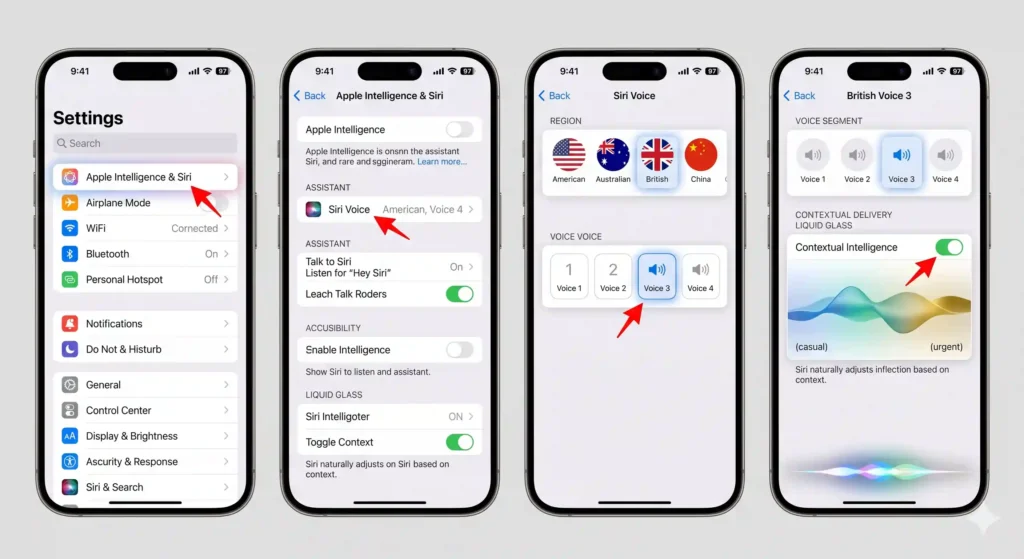
To accommodate the new artificial intelligence features, Apple changed the main settings menu path. Here is how to navigate the new iOS 27 Siri menus to swap out your voice.
- Open the Settings app on your iPhone.
- Scroll down and tap on “Apple Intelligence & Siri”. This menu was previously named “Siri & Search” in older software versions.
- Select “Voice” to open the main customization hub.
- Choose a Variety from the regional options list. You will see global accents like American, Australian, British, Indian, Irish, and South African. Tapping a region plays a brief audio preview.
- Select a Voice from the numbered list below the variety section. Tap through “Voice 1”, “Voice 2”, etc., to find the exact tone, gender, and pitch you want.
- Wait for the pack to download. Once you select a new option, your iPhone will download the necessary high-quality audio files. You cannot fully use the new voice until this download reaches 100%.
How iOS 27 Changes Siri’s Voice Dynamics
One major change in iOS 27 is how the assistant interacts with the new Liquid Glass interface. You no longer have to manually adjust inflection settings to make the assistant sound natural. Once you pick a base voice, the system uses natural language processing to adjust its tone based on the context of your conversation.
This contextual delivery is built directly into the new architecture to eliminate robotic responses. Apple frequently pushes silent server-side updates to these voice models. This means your audio quality will improve over time as long as you install the latest stable system updates.
Siri Voice Errors: Common Bugs and How to Fix Them
If your assistant sounds off or fails to trigger properly, you should force the system to recalibrate. Use these quick fixes to clear up recognition errors and incomplete downloads:
- Retrain the voice recognition: Go to Settings > Apple Intelligence & Siri > Talk to Siri. Toggle the switch off, then turn it back on.
- Complete the voice prompts: The system will ask you to read a few phrases aloud. Speak naturally in your normal environment so the AI can relearn your vocal patterns and acoustic surroundings.
- Check your Wi-Fi: If a new accent sounds robotic or low-quality, the voice pack download likely failed or paused. Reconnect to a strong Wi-Fi network and leave your phone plugged in to finish the download.
Customizing your phone takes just a few taps once you know where the new menus live. Keeping your device updated ensures you get the best audio quality from the new Apple Intelligence models. By following these steps, your iOS 27 Siri experience will sound incredibly natural and tailored perfectly to your daily routine.