
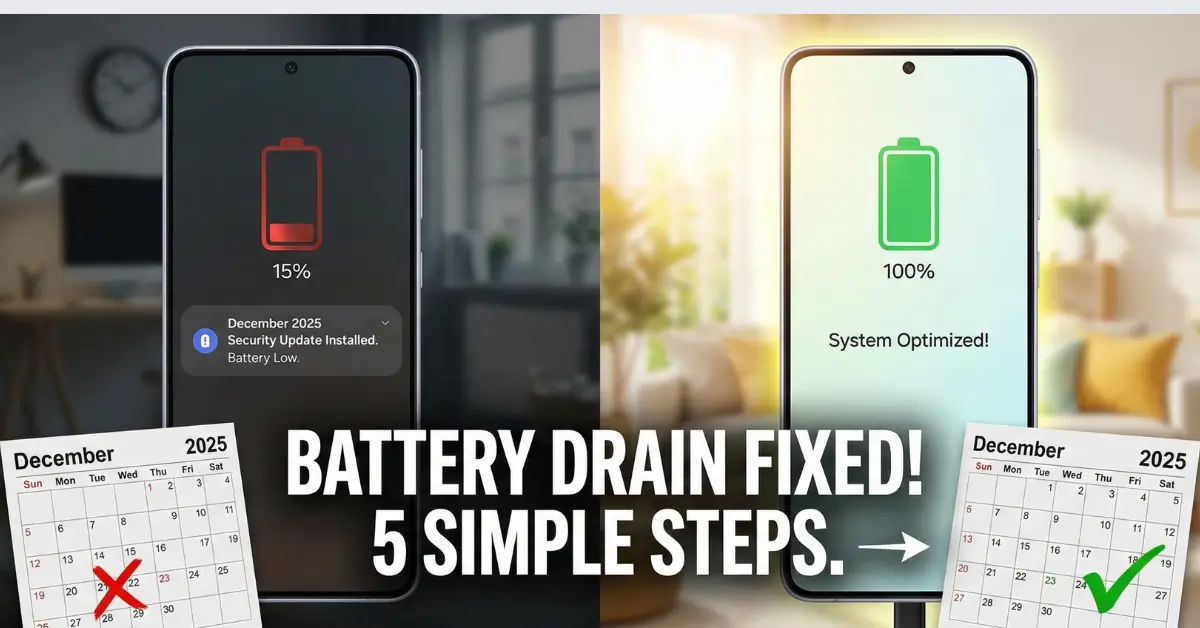
Did you just update your phone, and now your battery is dying by 5 PM? If you are looking to fix battery drain after update, you are not alone. It is a tale as old as Android itself: a shiny new security patch arrives, promising better protection and smoother performance. You hit “Install,” the phone reboots, and suddenly, your once-reliable battery is dropping percentages faster than a countdown timer.
Whether you are rocking a Samsung Galaxy, a Google Pixel, or a Xiaomi device, post-update battery drain is incredibly frustrating. You start wondering if your battery is failing or if the update “broke” your phone. The good news? It’s almost certainly a software hiccup, not a hardware failure. The latest security update, while essential for keeping your data safe, has triggered background processes that might be chewing through power. Fortunately, you can usually fix battery drain after update issues by tweaking a few settings.
Before you panic and order a power bank, try these five proven fixes to stabilize your battery life and get you back to all-day power.
1. The “Wait 48 Hours” Rule
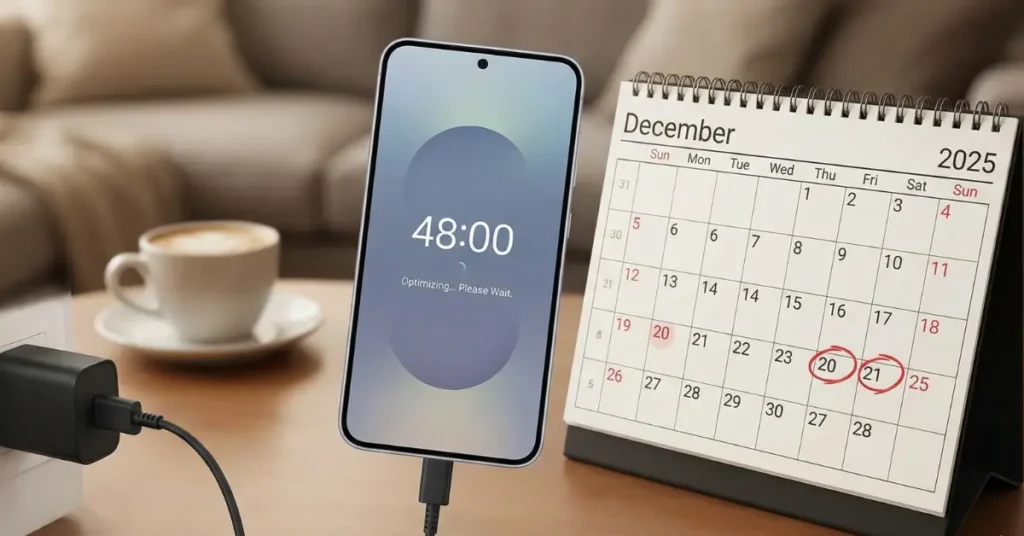
This is the hardest fix because it requires patience, but it is often the most effective. When you install a major monthly update like the Android 16 patch, your Android system does a lot of heavy lifting behind the scenes.
After the reboot, the OS re-indexes files, optimizes apps for the new software version, and rebuilds databases. This process places a temporary but significant load on your processor, which naturally consumes more power. Additionally, Android’s “Adaptive Battery” feature needs a day or two to relearn your usage patterns after a system change. Allowing this process to finish is the simplest way to fix battery drain after update.
What to do:
- Give it time: If you updated yesterday, wait another day or two.
- Keep it charged: Keep your phone plugged in overnight to allow these maintenance tasks to finish uninterrupted.
- Don’t panic: If the drain persists after 48 to 72 hours, move on to the next tip.
2. Wipe the Cache Partition
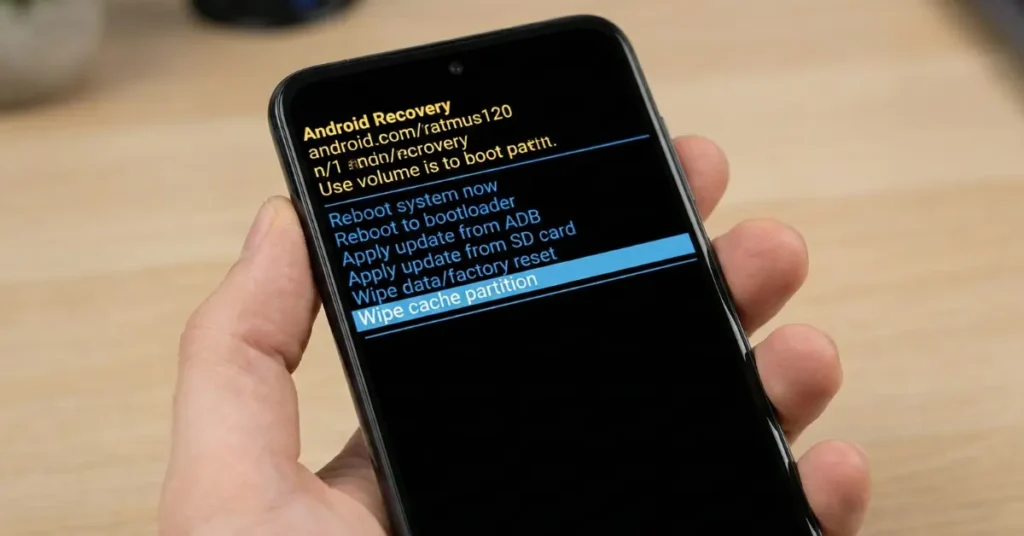
This sounds technical, but it’s a lifesaver for post-update glitches. Over time, your phone stores temporary system files (cache) to load apps faster. When you update your Android version, these old files can conflict with the new software, causing the processor to work overtime and overheat. Clearing this data helps to fix battery drain after update without deleting your personal photos.
How to do it (General Guide for Samsung/Pixel/Xiaomi):
- Turn off your phone completely.
- Connect to a PC: Note: Many modern Samsungs and Pixels require you to plug the phone into a PC via USB cable for this menu to appear.
- Enter Recovery Mode: Press and hold the Volume Up and Power buttons simultaneously. Keep holding until the logo appears, then release the Power button, but keep holding Volume Up.
- Navigate the Menu: You will see a black screen with command text. Use the Volume Down button to scroll down to “Wipe Cache Partition.”
- Confirm: Press the Power button to select it.
- Verify: Scroll to “Yes” and press Power again.
- Reboot: Once the process is complete (it takes seconds), select “Reboot System Now.”
3. How to Fix Battery Drain After Update: 4 Steps
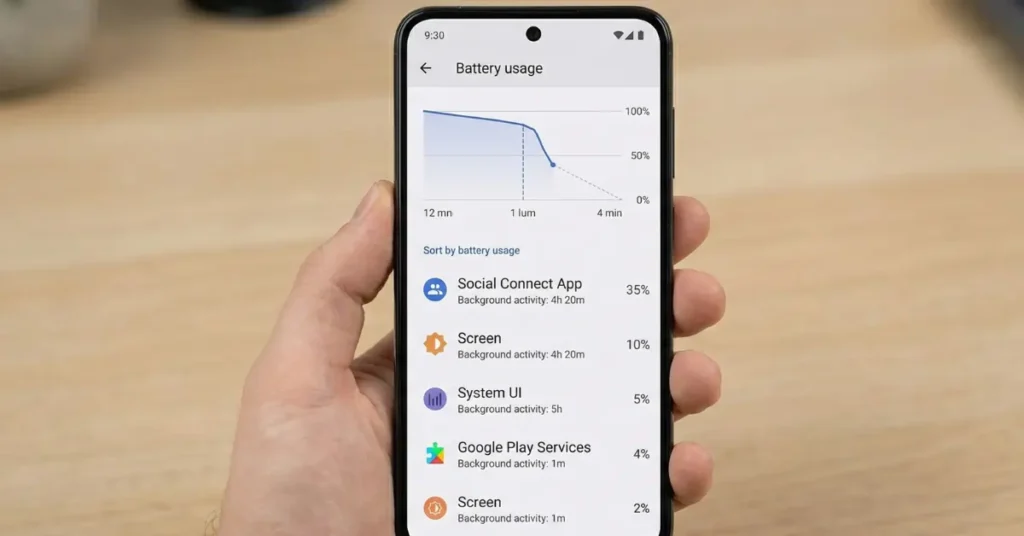
Sometimes the update isn’t the direct culprit – it’s an app that hasn’t been optimized for the new patch yet. An old version of Facebook, Instagram, or a random game might get stuck in a loop, trying to communicate with the OS and failing, resulting in massive battery usage. Updating these rogue apps will often fix battery drain after update completely.
How to check: Fix Battery Drain After Update
- Go to Settings > Battery.
- Tap on Battery Usage or View Details.
- Look for any app that is using a suspicious amount of power (e.g., 20% usage for 10 minutes of screen time).
- The Fix: If you find a culprit, go to the Google Play Store and check for updates for that specific app. If it’s already updated, try uninstalling and reinstalling it to clear its internal cache.
4. Tweak Fix Battery Drain After Update Features (5G & AOD)
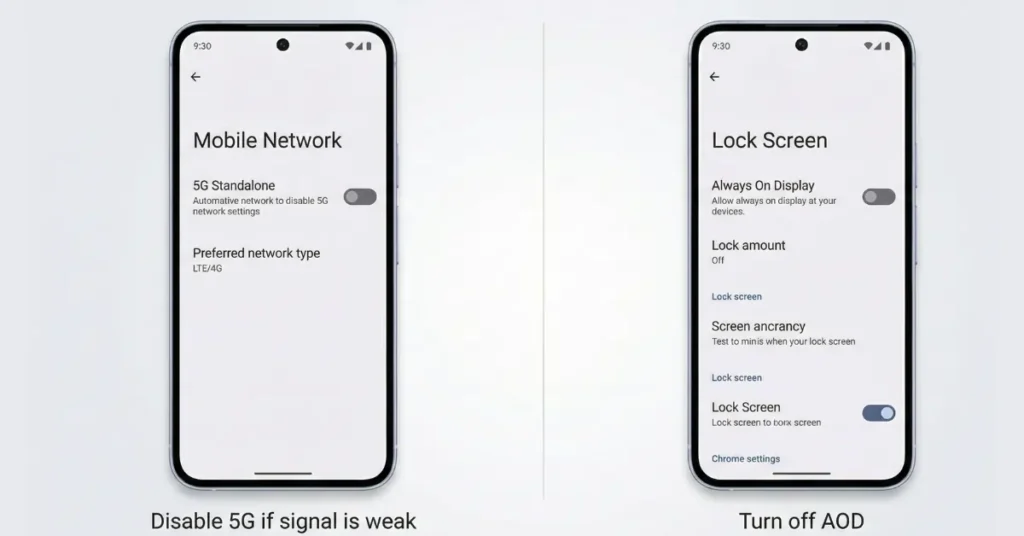
The new update may have reset some of your preferences or introduced new default behaviors for connectivity. Two of the biggest silent battery killers are weak 5G signals and the Always On Display (AOD).
If you are in an area where 5G is spotty, your modem works double-time switching between 5G and 4G (LTE) to maintain a connection. This “hunting for signal” is a battery disaster. Switching network modes is a quick workaround to fix battery drain after update.
How to optimize connectivity:
- Settings > Connections/Network > Mobile Networks: Switch your preferred network type to LTE/4G only, unless you have a strong, full-bar 5G connection.
- Settings > Lock Screen > Always On Display: Consider turning this off temporarily. Or, set it to “Tap to Show” rather than having it on all the time. The update might have increased the brightness or frequency of the AOD, draining more power than usual.
5. Update All Google Play Services
This is a hidden fix that many users miss. The “Google Play Services” framework acts as the bridge between your apps and the Android system. If the recent security patch updated the system, but your Play Services are outdated, you will experience synchronization errors that drain the battery. Updating this framework is a critical step to fix battery drain after update on any Android device.
How to update:
- Open Settings.
- Go to Apps > See all apps.
- Find Google Play Services.
- Scroll down to “App Details in Store” (if available) or simply open the Play Store and search for “Google Play Services” to see if an update is waiting.
- Alternatively, go to Settings > Security & Privacy > System & Updates to check for a “Google Play System Update.”
Conclusion: Fix Battery Drain After Update
Seeing your battery percentage plummet is stressful, but it rarely means your phone is broken. In 90% of cases, the ‘post-update drain’ is just your phone settling into its new software environment. By waiting out the optimization period, clearing the system cache, and managing a few settings, you can likely restore – and maybe even improve – your battery life.
Give these steps a try before you call customer support. Your phone will likely be back to its efficient self within a few days!