
This method from the Google Circle to Search guide works on various flagship and mid-range devices. Circle to Search is a useful system-level Android overlay that freezes your screen and lets you interact with whatever is visible. You can search your screen without switching apps, taking screenshots, or manually opening Google Lens. It works smoothly over videos, social media, web browsers, and your live camera viewfinder.
Requirements and Supported Devices
This feature is no longer limited to older flagship hardware. Here are the devices that currently support Circle to Search:
- Google Pixel: Pixel 6 series through the latest Pixel 10 series, including Pixel Folds and Pixel Tablets.
- Samsung Galaxy: S21 series through S26 series, Z Fold/Flip 3 and newer, Tab S9 and S10 series (including FE models), and select A-series phones like the A55 and A27.
- Expanding Android Ecosystem: Now available on devices from OnePlus (OnePlus 12), Motorola (Razr series), Oppo (Find X series), and Nothing Phone (Phone 2, 2a).
Core Step-by-Step Guide: How to Use Circle to Search
To get started, you need to activate the feature using your phone’s standard navigation buttons.

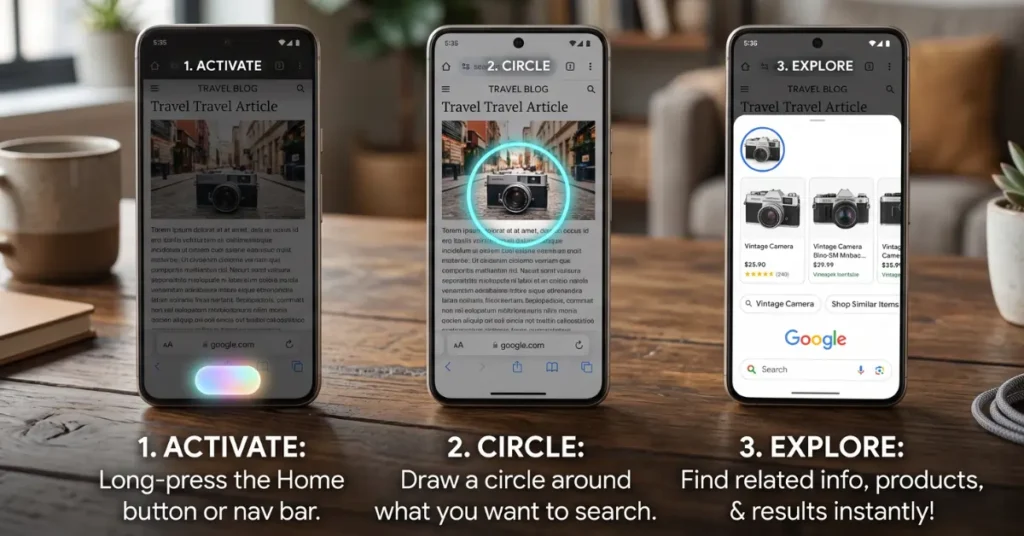
- Press and hold the bottom center of your screen. If you use gesture navigation, long-press the navigation handle (the thin pill-shaped bar). If you use 3-button navigation, press and hold the Home button.
- Wait for the screen to freeze. A glowing blue or purple aura will rise from the bottom of the screen, and a Google Search bar will appear.
- Interact with the frozen screen using your finger. You can use four distinct gestures to select what you want to search:
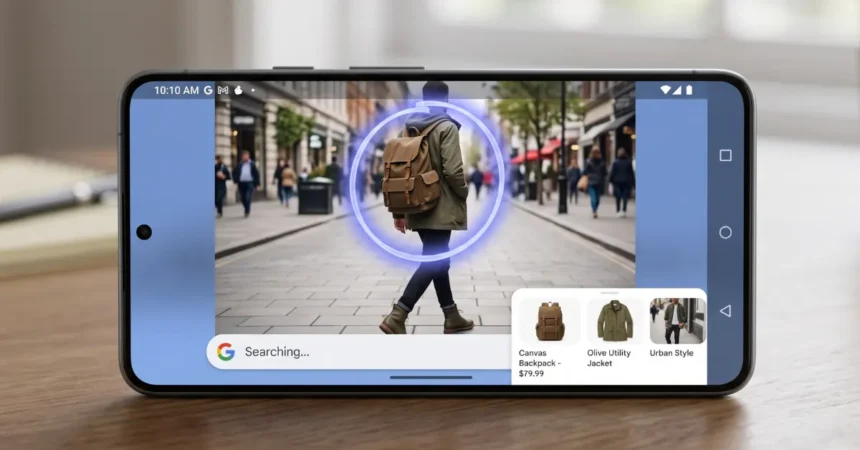
- Circle: Draw a ring around an object, person, or product to identify it.
- Tap: Single-tap a specific object, face, or text string. The system automatically detects phone numbers, URLs, and addresses.
- Scribble: Zig-zag your finger over a word or image to select it.
- Highlight: Drag your finger across sentences like a digital highlighter to select blocks of text. This is very effective for immediate Circle to Search translation.
- Swipe down from the top of the screen to close the tool. You can also tap the “X” in the top left corner or use the standard “Back” swipe gesture on the edge of your phone.
The Ultimate Feature List
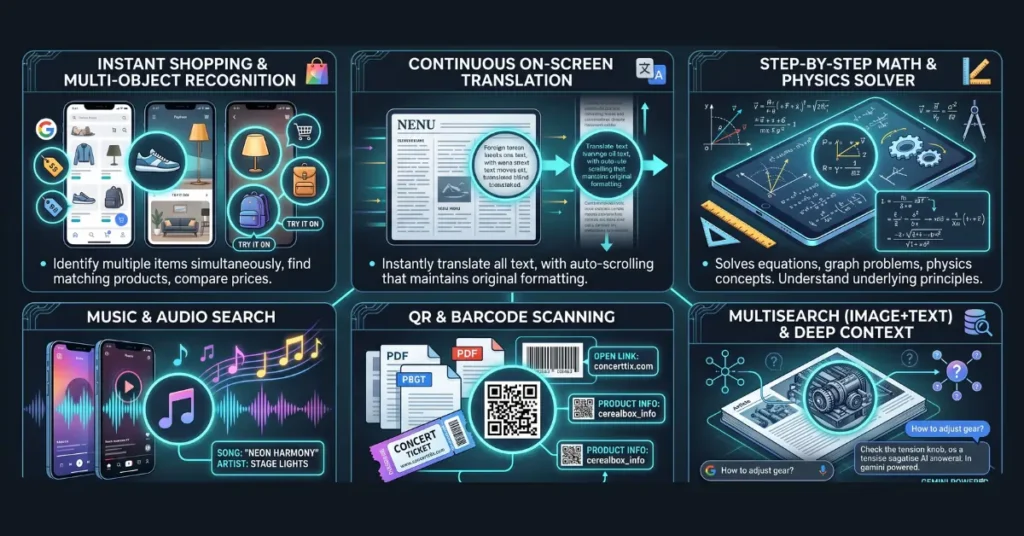
- Instant Shopping & Multi-Object Recognition
- How it works: Users can circle clothing, furniture, or tech gadgets to find matching products, prices, and links to stores. With the latest updates in 2026, users can circle an entire outfit or room to identify multiple items at once, such as finding the shoes, pants, and jacket in a single Circle to Search. It even has a virtual “Try It On” feature for clothing in supported regions.
- Best use case: Spotting a stylish outfit in a YouTube video or a cool lamp in a TikTok room tour, and instantly discovering where to buy it without leaving the app.
- Continuous On-Screen Translation
- How it works: By tapping the “Translate” button next to the search bar, the tool instantly translates all visible on-screen text. It now supports continuous scrolling translation, allowing the text to keep translating automatically as the user scrolls down a long webpage or document while preserving the original formatting.
- Best use case: Reading a foreign restaurant menu on Instagram or easily navigating a foreign news website.
- Step-by-Step Math & Physics Solver
- How it works: Users can circle a complex math equation, graph, or physics problem. Instead of just providing the final answer, Google’s AI breaks down the solution step-by-step to help the user understand the concepts involved.
- Best use case: A student using their tablet to circle a tough calculus problem directly in a PDF textbook or a homework app.
- Music & Audio Search
- How it works: Users can tap the Music Note icon next to the search bar to instantly identify a song playing around them or directly from the audio on their device.
- Best use case: Discovering the name of a trending track playing over an Instagram Reel or a movie scene without needing to open Shazam or switch apps.
- QR & Barcode Scanning
- How it works: Users can simply circle or tap any QR code or barcode visible on their screen. The tool reads the code instantly and opens the linked information.
- Best use case: Scanning a QR code sent in a WhatsApp image, a digital concert ticket, or a PDF flyer.
- Multisearch (Image + Text) & Deep Context
- How it works: Users can circle an image and then type a specific question about that image in the new bottom chat bar. Powered by Gemini, the “Ask about screen” feature also pulls in context from the active URL or PDF, providing very relevant AI Overviews.
- Best use case: Circling a picture of a broken bike chain and typing, “What tools do I need to fix this?” or circling a chart in a PDF and asking for a summary of the data trends.
Advanced Tips and Alternative Methods
You do not need a saved photo to search for physical items in the real world. You can use this tool directly through your phone’s camera.
Open your default Camera app and point it at an object. Long-press the navigation bar to freeze the live viewfinder. You can then circle the item directly on your screen. This is the quickest way to use Circle to Search. Find clothing or real-world products without filling your gallery with unnecessary pictures.
Troubleshooting Common Issues
Sometimes the feature will fail to activate or show a blank screen. Keep these limitations and fixes in mind:
Security Warning: If you try to use this tool while watching Netflix, Hulu, or viewing banking apps, the screen will likely black out. The tool respects system-level screen capture blocks for security and DRM copyright protection.
- Feature will not activate: It must be enabled in your phone’s settings. If you have turned off your digital assistant or disabled “Analyze on-screen images,” you will see a “Circle to Search unavailable” error.
- Disable Circle to Search: If you activate it by accident too often, you can turn it off completely. Go to your phone’s Settings app, search for Navigation mode, tap the gear icon next to your active navigation type, and toggle the feature off.
By mastering these simple gestures, you can find information faster than ever. Proper Circle to Search integration changes how you interact with your device. Keep your system software updated to get the latest Circle to Search gesture improvements.