

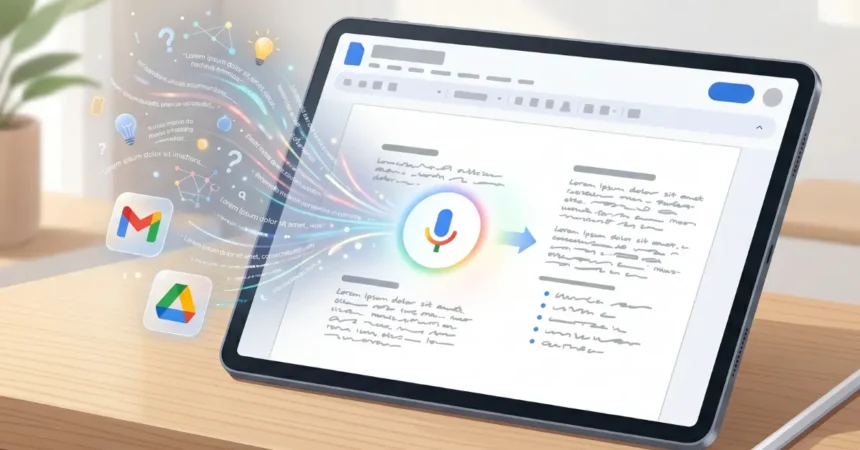
Google introduced a massive update to document creation at its May 2026 I/O event. Instead of typing or forcing you to speak perfectly, the new Google Docs Live voice tool lets you dictate and edit documents using natural conversation. We tested the early preview build to see exactly how it works. This guide will show you how to prepare your account and use the tool when it officially rolls out this summer.
Note on Account Requirements: Because processing conversational audio requires heavy computing power, this feature is not available on free Google accounts. You must have a paid Google AI Pro or Ultra subscription, or a Google Workspace business account in preview, to access it.
What You Need to Get Started
Before learning how to use Google Docs Live, make sure your hardware and software are ready.
- A Google AI Pro or Google Ultra subscription, or a Google Workspace business account.
- A stable internet connection to communicate with Google’s Gemini AI servers.
- A working internal or external microphone.
- Permission settings enabled to allow cross-app context within your Workspace.
Step-by-Step Guide to the Docs Live Voice Feature
The main advantage here is that you do not need a script. You can stumble over your words, use filler sounds, or change topics mid-sentence. The AI strips away the clutter and builds a clean first draft from your fluid thoughts.
- Open a blank document in Google Docs while logged into your premium AI or Workspace account.
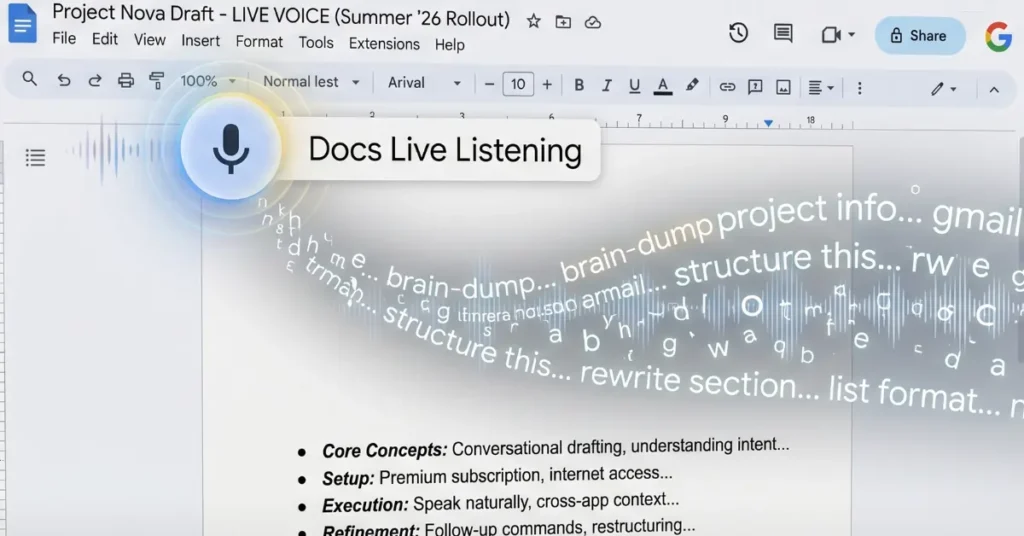
- Click the microphone icon on the top toolbar to activate the Google Docs Live voice feature.
- Speak your unscripted thoughts naturally. You do not need to dictate punctuation manually as you would with standard Google Docs voice typing.
- Give the AI specific context commands while speaking. For example, tell it to pull your work history from a specific Drive file or grab event logistics from a recent email thread.
- Wait for the AI to generate the text. It will turn your unstructured verbal brain dump into a polished outline or full draft.
- Edit the document using follow-up voice commands. You can say “make the second paragraph more formal” or “turn the last section into a bulleted list” without ever touching your keyboard.
Advanced Tips and Comparisons
When comparing Docs Live vs traditional voice typing, the biggest change is how it handles user mistakes and pacing. Older software forces you to speak slowly and perfectly. This new tool acts like a human assistant taking notes while you think out loud. It is a major functional upgrade compared to older mobile assistants like Siri voice dictation.
Because it connects to your entire Google account, this Google Docs AI voice to text system is highly aware of your data. It works across your ecosystem rather than in a vacuum. You can expect similar functionality to interact with your emails as features like Gmail Live evolve. You can even ask the tool to pull live data straight from the web to fill out missing details in your draft.
Troubleshooting Common Issues
If the Docs Live voice feature is not working correctly, check these common problems:
- The microphone icon is missing: Verify that your Google AI Pro or Ultra subscription is active. Free accounts will not see the button.
- Context commands fail: Check your Workspace permission settings. The AI cannot pull data from Drive or Gmail if you have not granted it access to your ecosystem.
- The text is inaccurate: Ensure you are in a quiet room. Heavy background noise or a low-quality microphone can confuse the AI processing your speech.
Typing out long reports and emails is incredibly time-consuming. By learning how to master the Google Docs Live voice system, you can save hours of manual data entry and editing. Keep your hardware ready and your apps updated as Google continues to roll this out broadly.